
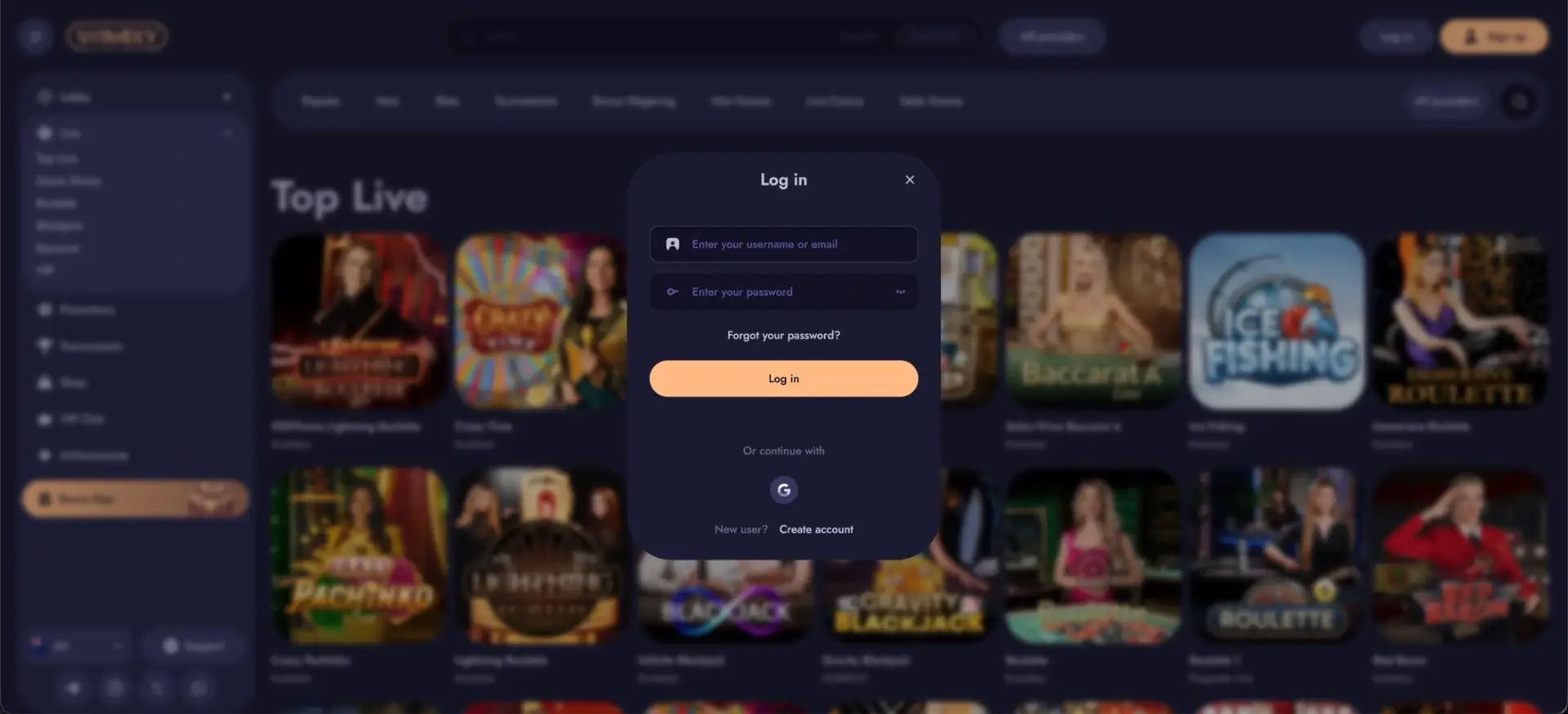
The Winoly login button sits in the top-right corner of every page, next to Sign up. Clicking it opens a login window where players enter their username or email and password, or sign in with one click through a Google account. The form works the same way on desktop and in mobile browsers. If login fails, the Forgot your password? link under the password field sends a reset link to the registered email; if that does not help, the Support button at the bottom of the sidebar connects to the support team.
Account security at Winoly rests on the password, the email linked to the account and, for players who register through Google, Google's own two-step verification. The sections below cover each login method, password recovery, mobile access, the most common errors and what happens after the first sign-in, including verification.
| Login essentials | Details |
|---|---|
| Where to log in | Log in button, top-right corner of any page |
| Login method | Username or email + password, or Google account |
| Two-factor authentication | Available through Google sign-in (Google 2-Step Verification) |
| Password reset | "Forgot your password?" link in the login window |
| Device support | Desktop and mobile browsers on iOS and Android |
| Session security | Encrypted HTTPS connection; password visibility toggle |
| When verification appears | Before the first withdrawal |
| Currency | AUD for Australian accounts |
| Support | Support button in the sidebar; Telegram, Instagram, X, WhatsApp |
How to log in to Winoly
The Winoly login window is a single compact form. It contains a username-or-email field, a password field with an eye icon to show the typed password, the "Forgot your password?" link, the main Log in button, a Google button under "Or continue with" and a "Create account" link for new users.
Step-by-step login
Signing in takes under a minute and follows the same order on any device.
- Open the Winoly website in the browser.
- Click Log in in the top-right corner of the page.
- Enter the username or the email address used at registration.
- Type the password - it is case-sensitive. Use the eye icon to check it for typos.
- Click the orange Log in button.
- The lobby reloads with the AUD balance and the Deposit button in the top bar.
Login with Google
Players who created their account through Google sign in without a password. In the login window, click the Google icon under "Or continue with", choose the Google account linked to Winoly and confirm. If Google 2-Step Verification is on, Google asks for its confirmation first, which adds a second layer of protection to the Winoly account.
Create a Winoly account if there is no profile yet
Login only works for an existing account. A new player who tries to sign in will get an error, so the first step is registration. The "Create account" link at the bottom of the login window switches directly to the registration form.
Quick registration flow
Registration takes two steps and shows the welcome pack - 330% up to AUD 2,565 + 370 free spins - at the top of the form.
- Click Sign up or "Create account" in the login window.
- Enter an email address and a password.
- Confirm the age of 18+ and accept the Terms and Conditions and Privacy Policy.
- Open "Have a promo code?" if there is a code to enter.
- Click Join now and complete the second step with the bonus setup.
Google registration is also available under "Or continue with". Accounts created through Google later sign in through the same Google button.
Secure Winoly login practices
Most account access problems are prevented by a few habits that take no extra time once set up. They matter more at a casino than on a typical website, because the account holds a real-money AUD balance and payment details.
- Use a unique password for Winoly that is not used on email or other sites.
- Prefer Google sign-in with 2-Step Verification for an extra layer of protection.
- Do not save the password in a browser on a shared computer.
- Log out after playing on public Wi-Fi or someone else's device.
- Open Winoly only from a saved bookmark or home screen shortcut, not from links in unsolicited messages.
- Keep the email account linked to Winoly secure, since password resets go there.
Winoly password recovery
A forgotten password is reset through email. The process takes a few minutes and does not affect the balance, active bonuses or verification status.
Reset steps
The reset starts from the same login window used for signing in.
- Click Log in in the top-right corner.
- Click Forgot your password? under the password field.
- Enter the email address linked to the Winoly account.
- Open the email from Winoly and follow the reset link (check the spam folder if it does not arrive).
- Create a new password and sign in with it.
Accounts created through Google do not have a separate Winoly password. For them, access is restored through Google's own account recovery.
Winoly mobile login
On phones and tablets, the Log in button stays at the top of the screen and opens the same form as on desktop. Login works in Safari, Chrome, Firefox and other current mobile browsers on iOS and Android, and there is no separate app account - the same credentials work on every device.
Tips for mobile
A few settings make mobile login quicker and more reliable.
- Add Winoly to the home screen so the site opens with one tap from a trusted shortcut.
- Let the phone's password manager store the credentials, protected by Face ID, Touch ID or a fingerprint.
- Use Google sign-in on Android to log in with the account already on the phone.
- If the page looks broken, rotate the phone or reload - the layout adapts to screen width.
Troubleshooting common Winoly login errors
Login errors usually have a simple cause. The most frequent ones and their fixes are listed below.
Incorrect credentials
An "invalid credentials" message means the username, email or password does not match the account.
- Check for an extra space before or after the email address.
- Turn off Caps Lock - the password is case-sensitive.
- Try the username instead of the email, or the other way round.
- If the account was created through Google, use the Google button instead of the form.
- Reset the password through "Forgot your password?" if nothing else works.
Browser or cache issues
If the login form does not respond or the session drops right after signing in, the cause is usually stored browser data or a blocking extension.
- Clear the cache and cookies for the site, then reload the page.
- Disable extensions that block scripts or pop-up windows.
- Try a private window or a different browser.
- Update the browser to the latest version.
Google sign-in fails
Problems with the Google button usually come from the browser rather than the casino.
- Allow pop-ups for the Winoly site, since the Google window opens separately.
- Check that the chosen Google account is the same one used at registration.
- Complete Google's own 2-Step Verification prompt on the phone if it appears.
Account blocked
An account can be temporarily blocked after several failed login attempts, during a security check or because of a self-exclusion or limit set by the player. In these cases a password reset does not help, and the Support team has to unlock the account or explain the reason. Duplicate accounts are not allowed, so creating a second profile instead of contacting support leads to further restrictions.
What is available after Winoly login
After signing in, the top bar shows the AUD balance and the deposit entry point, and the whole site becomes personalised to the account. The main sections a logged-in player uses are:
- Cashier: deposits and withdrawals in AUD by card, bank transfer, MiFinity or crypto.
- Promotions: the welcome pack stages unlock one by one, plus reloads and cashback.
- Tournaments: network events with a Participate button on each card.
- Shop: the coin balance and rewards such as free spin packages.
- VIP Club: the current tier and level, points and level-up rewards.
- Achievements: tasks that pay coins for the Shop.
- Bonus Map: a separate bonus section highlighted in the sidebar.
- Profile: personal details, verification documents and account settings.
Account verification (KYC) after login
Verification is not part of the login process, but it appears once the account is active - at the latest when the first withdrawal is requested. Winoly operates under a Curaçao licence, which requires identity checks before payouts. The documents are uploaded from the profile after logging in.
- Identity: passport, Australian driver licence or national ID card.
- Address: a recent utility bill or bank statement.
- Payment method: proof that the card, e-wallet or crypto wallet belongs to the account holder.
Completing verification right after the first login removes the longest wait from the first payout. Profile details - name, date of birth and address - should match the documents exactly.
Winoly login FAQ
Short answers to the questions players in Australia ask most often about signing in to Winoly.
Where is the Winoly login button?
In the top-right corner of every page, to the left of the Sign up button. On mobile it stays at the top of the screen.
Does Winoly login work with a username?
Yes. The first field accepts either the username or the email address linked to the account.
Does Winoly support Google login?
Yes. The Google button under "Or continue with" signs in accounts created through Google without a separate password.
How to reset a Winoly password?
Click "Forgot your password?" in the login window, enter the registered email and follow the link in the reset email.
Why can a Winoly account be blocked?
Common reasons are repeated failed login attempts, a security check or an active self-exclusion. Support can explain the reason and restore access.
Does the same Winoly login work on mobile?
Yes. One account works on desktop and in any mobile browser, with the same AUD balance, bonuses and VIP progress.
Is verification needed for Winoly login?
No. Login works without verification, but documents are required before the first withdrawal.
Updated 20 October 2026.